 HyperSnap 10
Cut mistakes and pauses
Remove false starts, long waits, and unwanted fragments while keeping the original recording safely untouched.
HyperSnap's built-in Video Editor gives you everything you need to tighten a recording, combine the best parts of several clips, add annotations that appear at exactly the right moment, and export a finished MP4 - without leaving the capture workflow you already know.
The visual timeline brings the filmstrip, audio waveform, cuts, removed sections, and timed annotations together. Scrub through the result, zoom in for frame-level precision, and preview the edited story before you export.
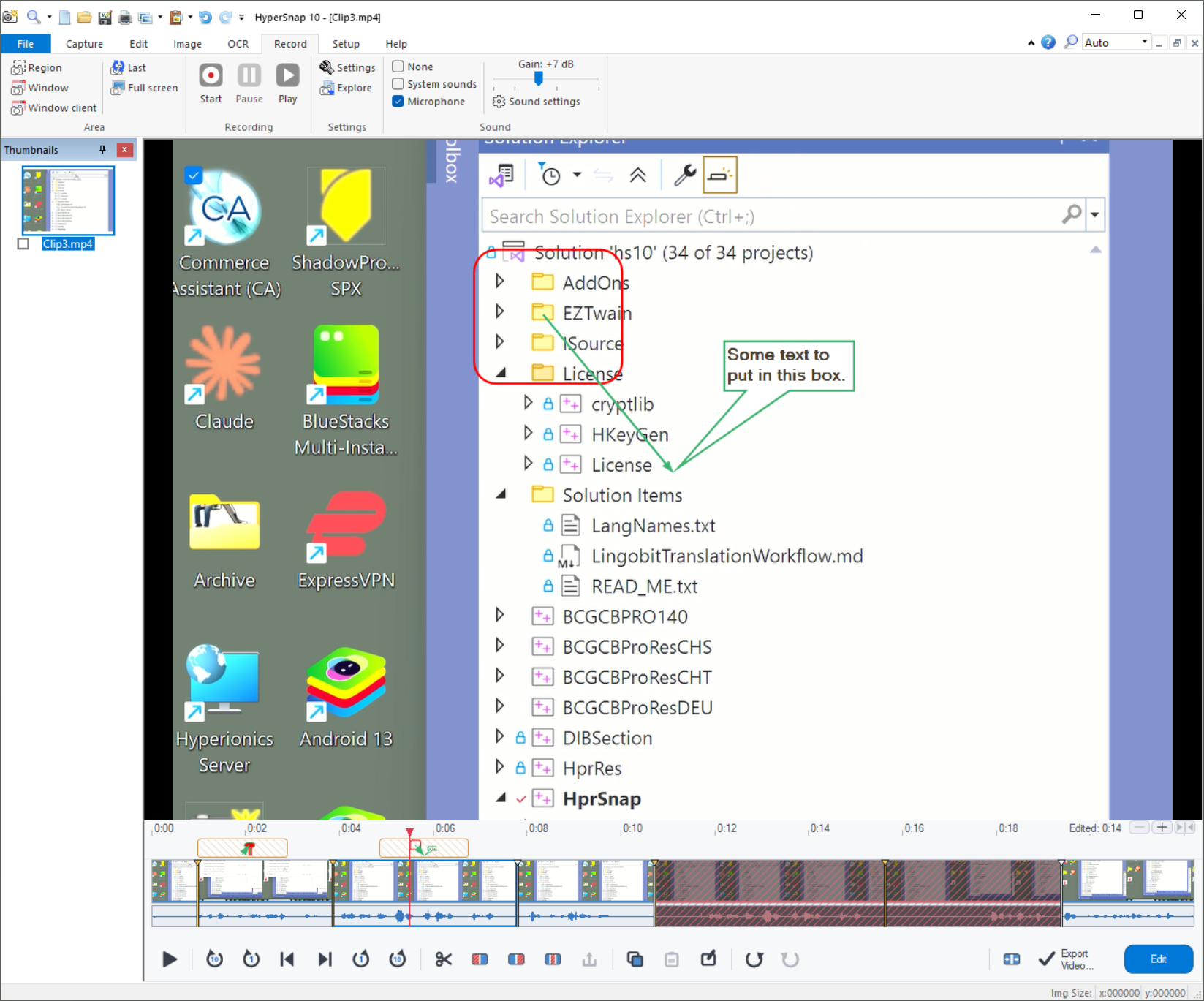
Remove false starts, long waits, and unwanted fragments while keeping the original recording safely untouched.
Copy and paste entire clips or selected sections from one or more open videos to build a smoother, stronger presentation.
Use HyperSnap's familiar arrows, frames, text, highlights, and other shape tools as timed overlays that fade in and out with the action.
Playback follows the edit: removed material is skipped, inserted sections appear in place, and annotations show at their assigned times.
Editing is non-destructive and saved automatically. Close the clip or exit HyperSnap, then return later with every cut and annotation still in place.
Create a new H.264/AAC MP4 while the source video and its editable timeline remain available for another revision.
Edit a clip recorded on HyperSnap's Record tab or open another MP4 you already have. There is no separate video application to learn.
Split, trim, rearrange, and annotate while the combined timeline gives you a clear view of picture, sound, and timing.
Review the edited playback, then create a new MP4 with cuts, inserted footage, and annotations permanently included.
Keep lessons moving, join the clearest takes, and reveal guidance only when viewers need it.
Remove unrelated activity, focus attention with callouts, and deliver a concise reproduction that is easy to review.
Turn a quick screen capture into a polished walkthrough without breaking your HyperSnap workflow.
Bring together videos with different frame sizes, frame rates, or sound formats. HyperSnap converts inserted footage to match the main clip during export, scales the picture without distortion, and supplies silence where a source has no audio.
HyperSnap stores the editable decisions separately from the video and saves them after every change. The source MP4 is never rewritten; only an export creates the finished version.
Yes. Open any MP4 file in HyperSnap and use the same built-in editing tools.
Yes. Copy a section from one open video and paste it into another, then trim the inserted footage in place.
No. All editing is non-destructive, automatically saved, and applied only when you export a new file.
A standard MP4 file with H.264 video and AAC audio, matched automatically to the quality and format of the source clip.
Record, edit, annotate, and export in HyperSnap 10 - then keep the editable version ready for whatever you want to improve next.