Use @Voice's spoken reading and display options to find a comfortable way through an article or book. The settings below cover large text, contrast, and navigation.
Trusted by 10M+ Google Play downloads · 4.3★ on Google Play
Use the direct APK on de-Googled, GrapheneOS, emulator, or Play-free devices. The universal APK is the safest default build.
What low-vision readers usually need besides speech
People searching for read-aloud tools for visually impaired or low-vision use often need larger text, stronger contrast, TalkBack compatibility, and ways to move through text without relying on tiny controls.
How @Voice supports accessible navigation and display
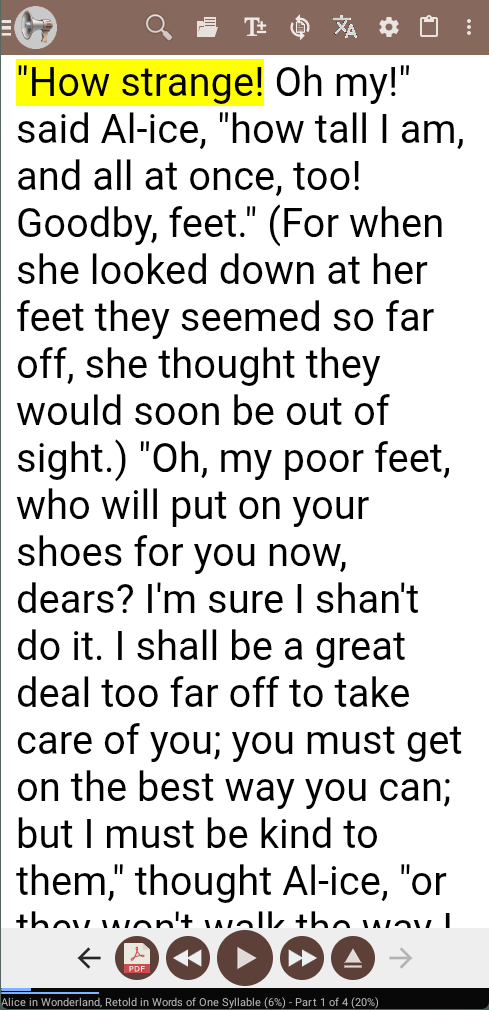
@Voice includes TalkBack support, explore-by-touch navigation, large text in the reading view, high-contrast and custom colors, word highlighting when supported, and sentence-by-sentence review.
What @Voice already supports: Current accessibility materials list TalkBack support, touch exploration, TalkBack reading gestures, larger text, custom colors, high contrast, sentence review, and OCR-based PDF accessibility workflows.
A low-vision-friendly setup in @Voice
Open the article, document, or book in @Voice.
Increase text size, switch to a higher-contrast or lower-glare color scheme, and enable the reading behaviors that suit your device.
Use speech, gestures, or sentence-level navigation to move through the content in the way that feels most reliable.
Accessibility settings worth enabling first
The best setup often comes from combining speech, text size, contrast, and Android accessibility gestures instead of depending on one control alone.
Raise text size in the reading view first so the current sentence and controls are easier to locate.
Try higher-contrast or lower-glare colors depending on whether brightness or weak separation is the bigger problem.
If you already rely on TalkBack, keep the app in a workflow that works with touch exploration and gesture-based reading control.
Why it works better than a tiny visual reader with speech added on
Makes long reading sessions less dependent on small text or constant zooming.
Works with Android accessibility tools instead of fighting them.
Helps with web pages, documents, and ebooks, not just one narrow format.
Can also make difficult PDFs more listenable through extraction and OCR workflows.
See it in @Voice
Example @Voice Aloud Reader screen for Read Aloud for Low Vision.Click the screenshot to enlarge it.
Common questions about Read Aloud for Low Vision
Does @Voice work with TalkBack?
Yes. TalkBack support and accessibility-oriented reading gestures are part of the documented @Voice feature set.
Can I navigate with TalkBack gestures?
Yes. Current @Voice docs include TalkBack reading gestures and accessibility touch exploration support.
Can I enlarge only the reading view instead of changing Android system text size everywhere?
Yes. Independent text-size control is one of the documented accessibility features.
Can @Voice help with PDFs that are hard to read visually?
Yes. Text extraction and OCR workflows are specifically useful when visually reading the original PDF is difficult.
Can I install it without Google Play?
Yes. Use the direct APK from Hyperionics.
Install @Voice and try it now
If this is the workflow you were looking for, install @Voice Aloud Reader and test it with your own content in a minute or two.
 @Voice Aloud Reader