Need bilingual reading and listening on Android, not just one-shot translation?
A lot of translation apps can show a translated page, but language learners usually want more: original plus translation, separate voices, sentence lookup, and repeated listening.
Trusted by 10M+ Google Play downloads · 4.3★ on Google Play
Use the direct APK on de-Googled, GrapheneOS, emulator, or Play-free devices. The universal APK is the safest default build.
What language learners need beyond one-tap translation
Basic machine translation gives you a result, but not a study workflow. Learners often need source and translation together, easy sentence-level lookup, and a way to alternate between languages by ear.
How @Voice combines translation with listening
@Voice supports article translation, interleaved bilingual views, instant sentence translation, separate voices for source and translated text, and reading behaviors designed for language learning.
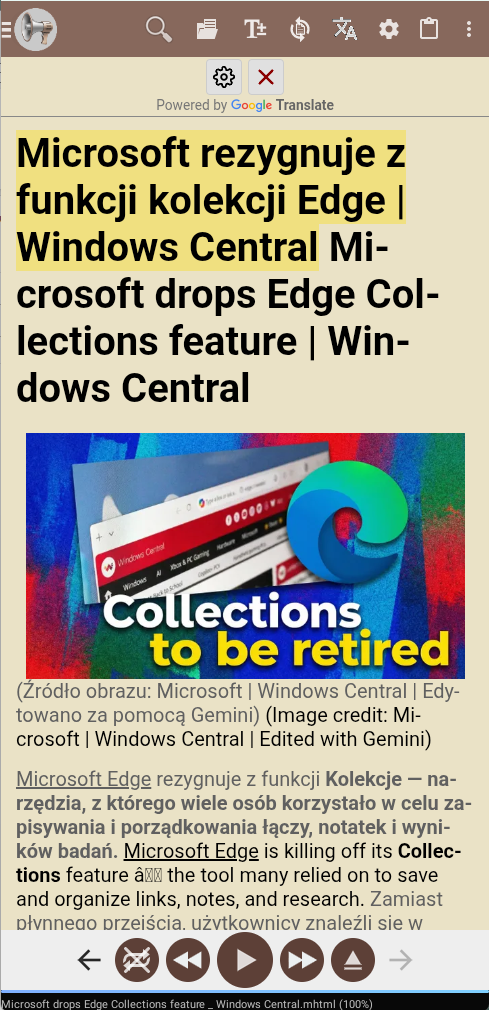
What @Voice already supports: Current features include translation setup, bilingual text insertion, language switching, voice-per-language playback, sentence translation, and save-as-HTML for translated results.
Building a bilingual reading session
Open an article or text in @Voice and turn on translation for the source and target languages you want.
Choose bilingual display so the original text and translation appear together.
Listen in one or both languages, tap for sentence translation, and save the result if needed.
A study pattern that works well in @Voice
The key advantage is keeping the source text, translated text, and speech controls together so you can study with your ears as well as your eyes.
Read one sentence in the target language, then hear the source line or translation to confirm meaning.
Use separate voices for the two languages so it is obvious which line is being spoken.
Save the bilingual result when you want to review the same material again later instead of rebuilding it from scratch.
Why it works for shadowing and comprehension practice
Better suited to study than a simple translate button.
Can use different voices and settings for each language line.
Useful for reading practice, shadowing, and listening comprehension.
Keeps articles, books, and other learning material in one place.
See it in @Voice
Example @Voice Aloud Reader screen for Bilingual Reader for Language Learning.Click the screenshot to enlarge it.
Common questions about Bilingual Reader for Language Learning
Can @Voice show both source text and translation together?
Yes. Interleaved bilingual text is one of the features that makes it useful for language learning.
Can @Voice speak the original and translated lines with different voices?
Yes. Separate voices for different language lines are part of the bilingual workflow.
Can I translate sentence by sentence while reading?
Yes. Instant sentence translation is one of the features that makes @Voice useful for study rather than just one-shot machine translation.
Can I save the bilingual result for later study?
Yes. Saving translated output makes repeated listening and review much easier.
Can I install it without Google Play?
Yes. Use the direct APK from Hyperionics.
Install @Voice and try it now
If this is the workflow you were looking for, install @Voice Aloud Reader and test it with your own content in a minute or two.