Čeština
Deutsch
Español
Italiano
Français
Polski
Português
Türk
Български
Русский
Український
عربى
中國人
Dialog voice changes in @Voice Aloud Reader is
an imperfect, but often useful feature to assign different TTS voices to
different characters in ebook or web novel dialogs. This process uses the same
voice change annotation as described in “Text
annotations to change voices while reading aloud in @Voice” document, all
the voice change instruction are inserted automatically, when a new book chapter
is loaded.
Three voices are assigned in this process, the default narrator voice, plus voices named Dlg1 and Dlg2. The Dlg1 and 2 voices alternate as the book characters speek, but the voice assignements are random. If, for example you define a female TTS voice to Dlg1 voice, and a male to Dlg2, there is only a 50-50 chance that they will be used correctly in any particular dialog passage. However you may swap these voices while listening, if you care about it, with one tap on the Back button on the screen or on your headphones. Precise assigning of voices automatically requires human understanding of the context, so the text would have to be annotated either by another person, or an expensive to train and run AI. At this time, this is not possible.
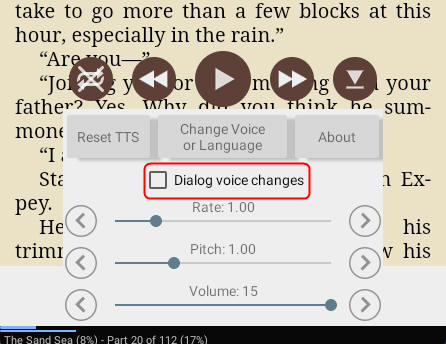
To start, expand the bottom control panel in
@Voice and press on the “Dialog voice changes” checkbox:
After pressing it, you will see a panel where you may define a new voice change pattern or enable/disable an existing one. Activating voice changes will enable the other controls to define or modify voice changes.
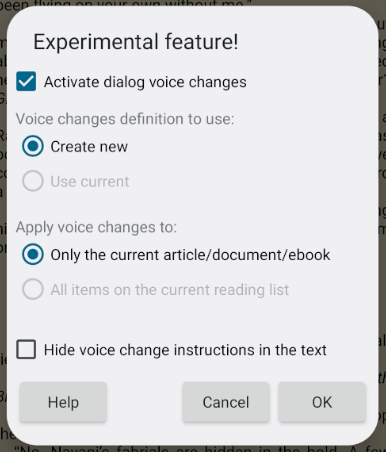
If voice changes were never before defined for the current file or reading list, you must first create them. Press the OK button to proceed. Please read and follow the on-screen instructions.
When the process is finished, the book chapter text will be reloaded, and if you left the option to "Hide voice change instructions..." unchecked, you will see the voice change instructions like "{{@Dlg1}}...{{@}}" inserted into the text. It seems a good idea to keep these instructions visible initially, to verify if they were inserted correctly. You may return to the above panel at any time and change the options later.
To actually select which voices to use and how they sound, expand the bottom control panel again and press the "Change voice or language" button. A new panel appears, similar to this:
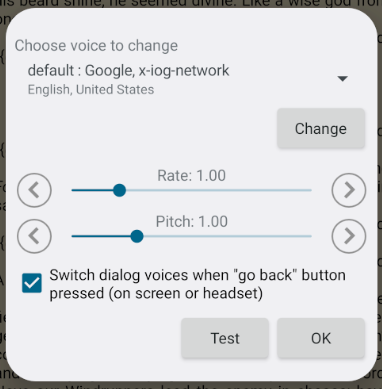
The top selection box, uder the "Choose voice to change" prompt, lets you select the voice to be modified, e.g. "Dlg1". Press the "Change" button, and a familiar screen for selecting from the installed TTS voices will appear. Similarly you may define the Dlg2 voice, and the "default" narrator voice. You may return to this panel as many times as needed to select different voices or change their parameters, like reading speed (rate), pitch and relative volume.